Last updated:
Import & export
Export (parts of) application templates and import these files so you can create or add:
- a completely new application
- individual dashboards, forms, dataclips, or data flows
Main steps
Section titled “Main steps”Step 1: Export from a collection
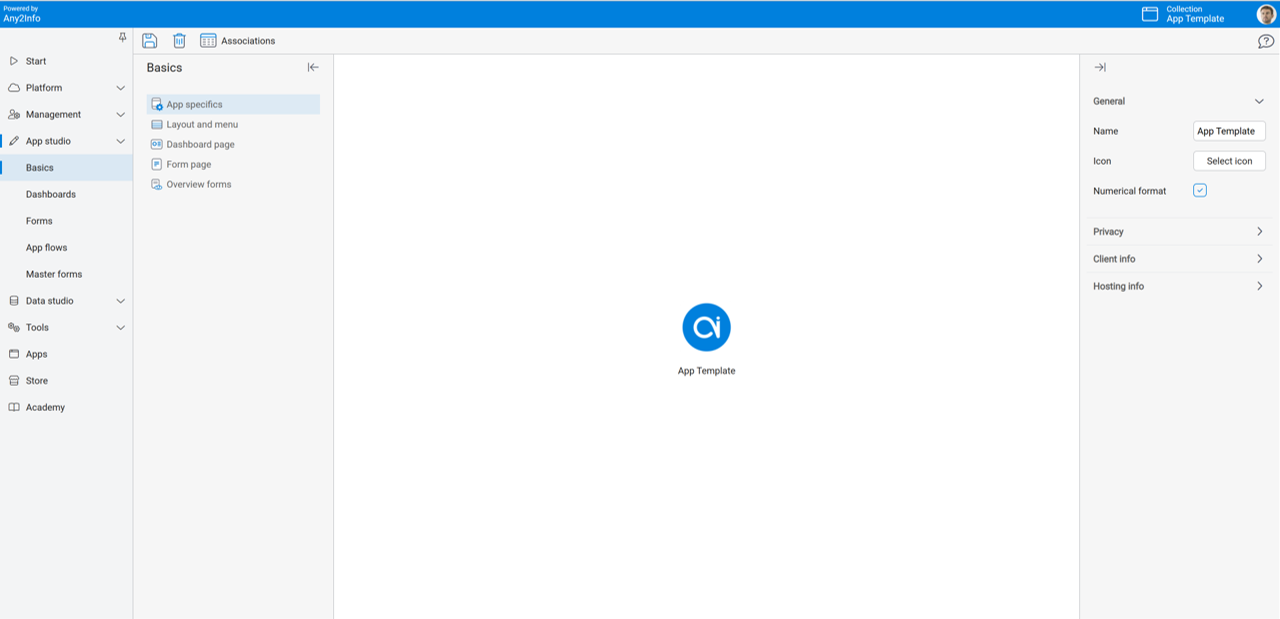
Section titled “Step 1: Export from a collection”Open the collection from which you want to export dashboards, forms, dataclips, or data flows, and select the exportable objects.
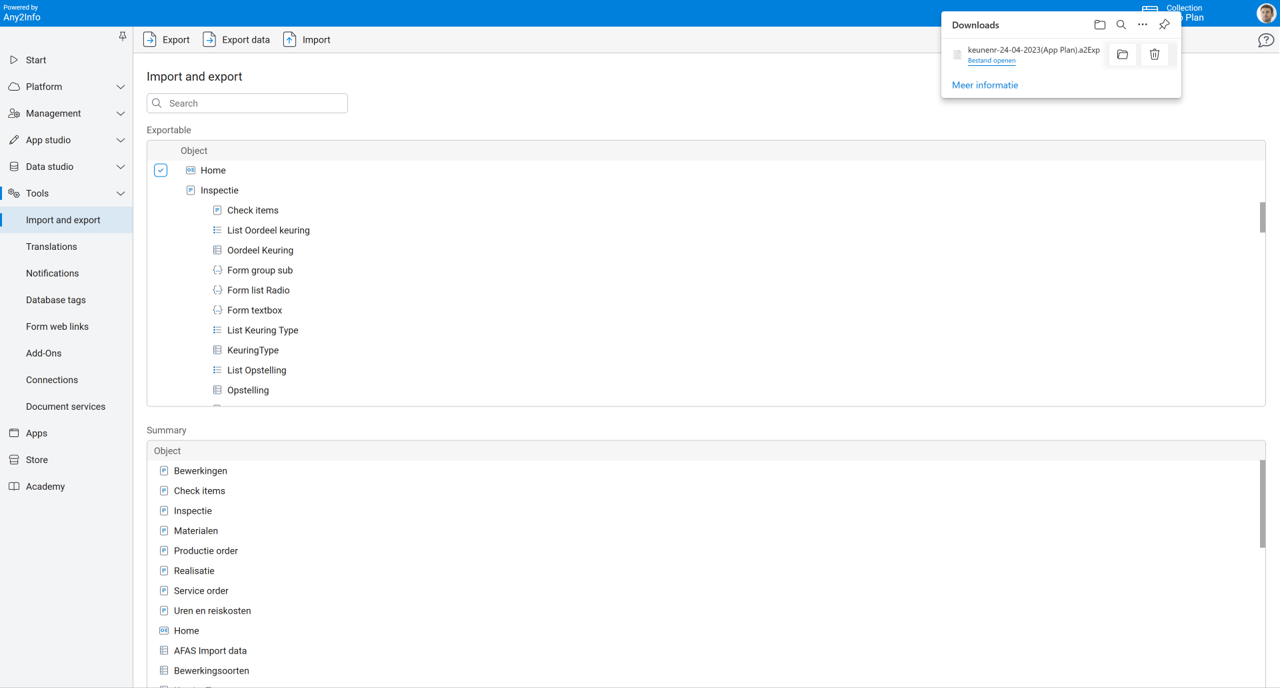
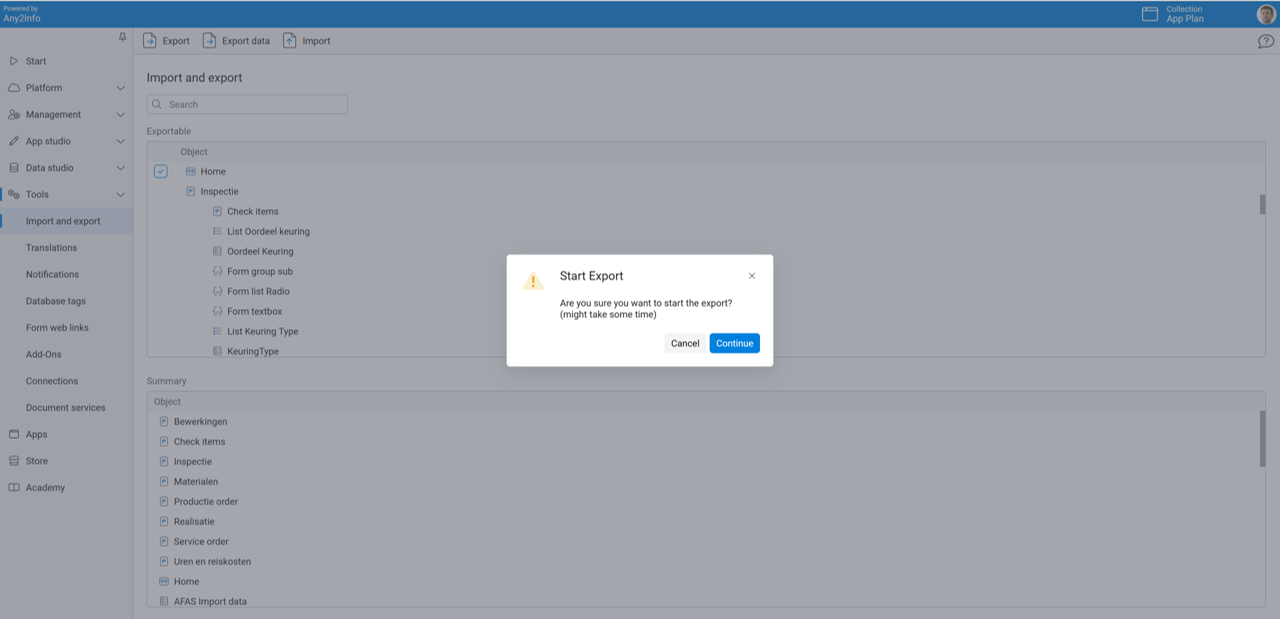
Push the Export button in the toolbar and the selected parts are downloaded as a file.
Step 2: Switch to the target collection
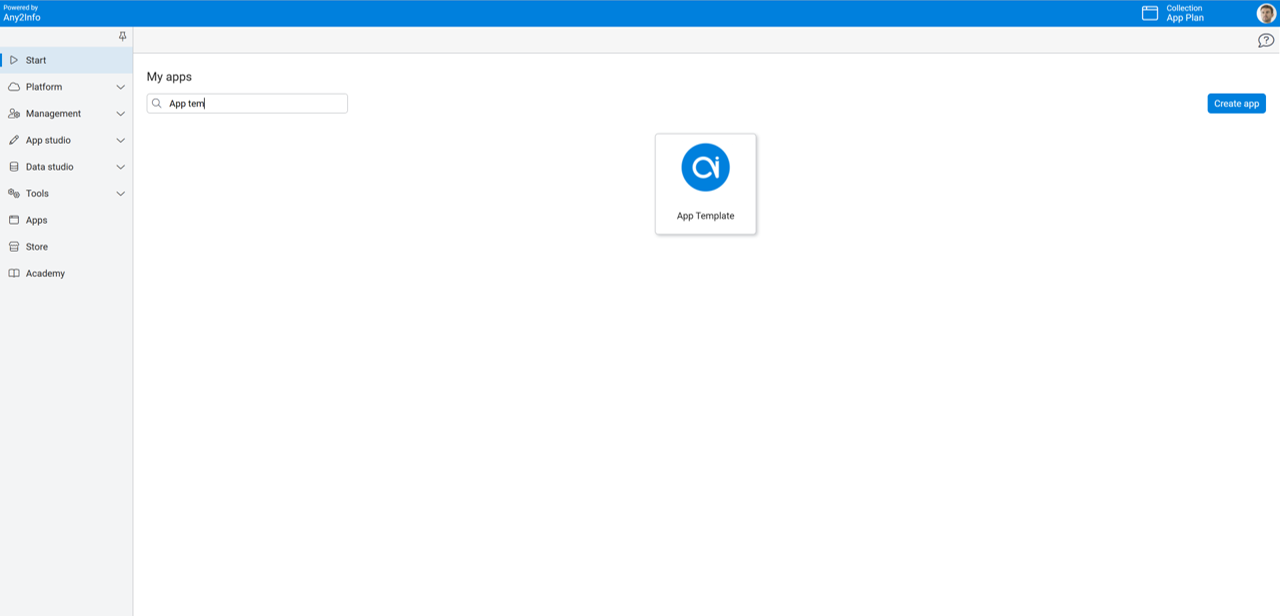
Section titled “Step 2: Switch to the target collection”Switch to the Start menu and select (or create) the app collection in which you want to import the export file (containing dashboards, forms, dataclips, or data flows).
Step 3: Import the file
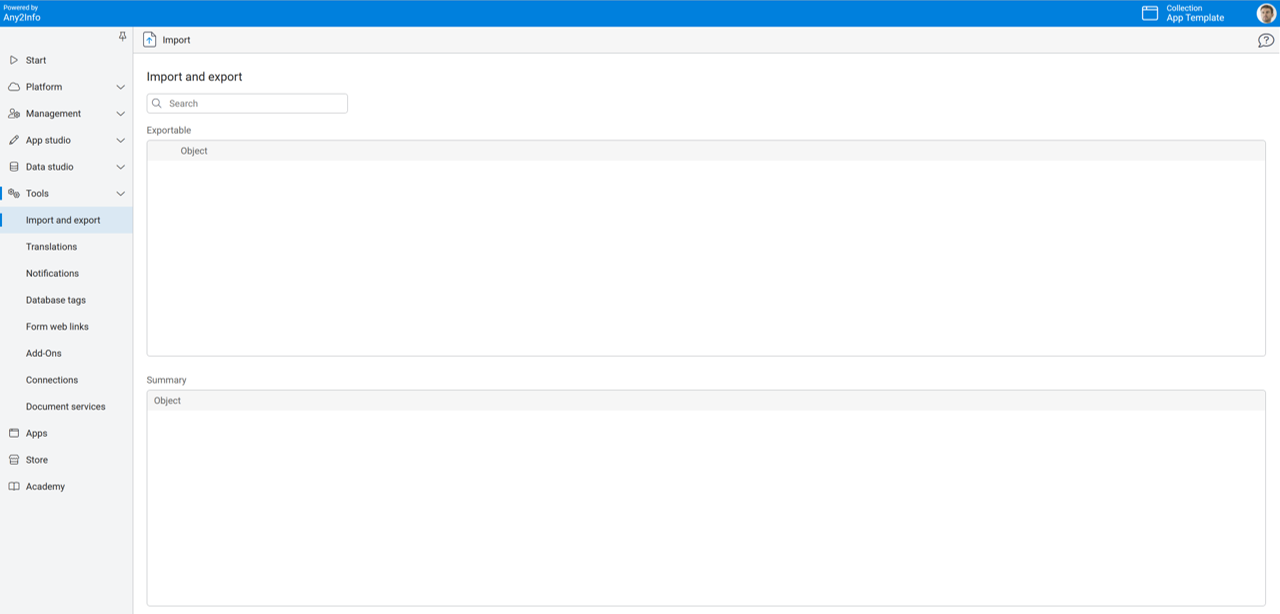
Section titled “Step 3: Import the file”Open the Tools menu item and select Import and Export. Push the Import button in the toolbar and select the file from your file structure.
Step 4: Start the import
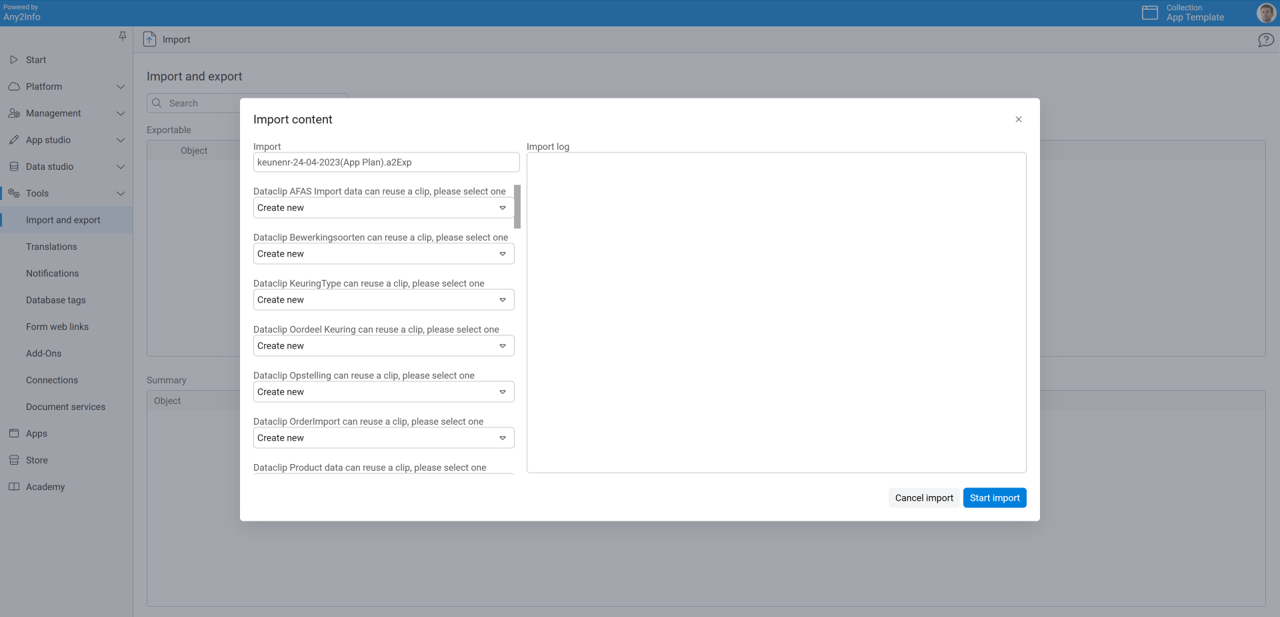
Section titled “Step 4: Start the import”The import content is displayed and you can create a new, select an existing, or ignore an object. Push the Start import button.
Step 5: Resolve additional selections
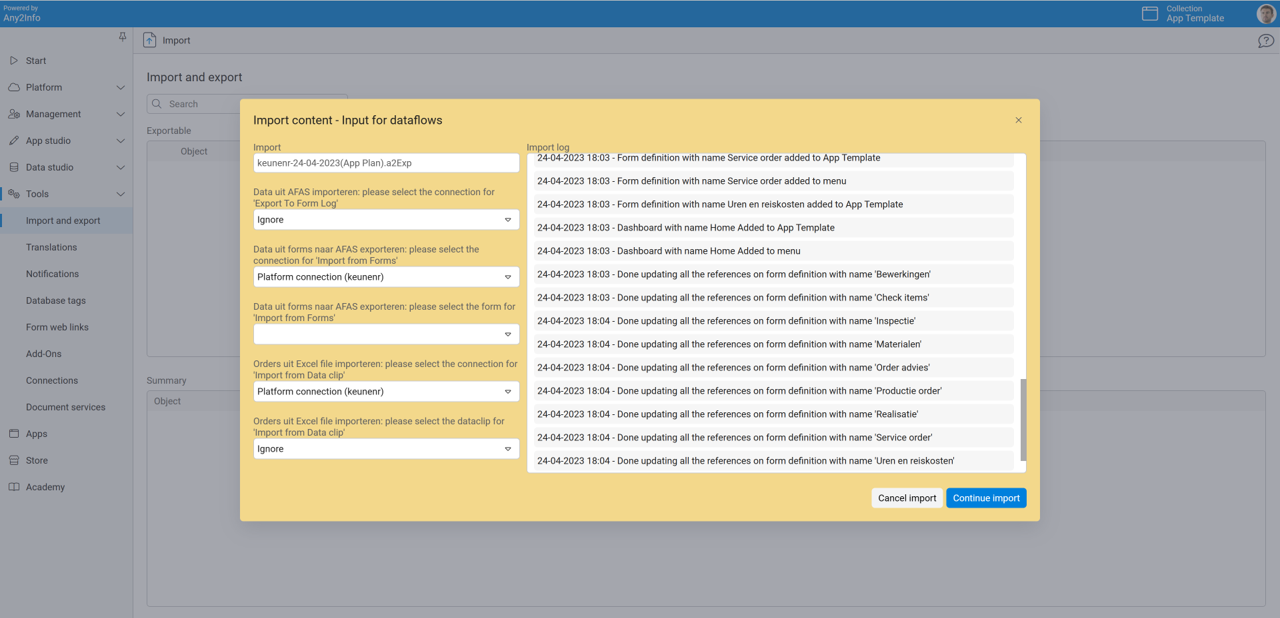
Section titled “Step 5: Resolve additional selections”Additional selections may be required during the import. The screen turns light yellow. Select the required items and continue the import.
Step 6: Complete the import
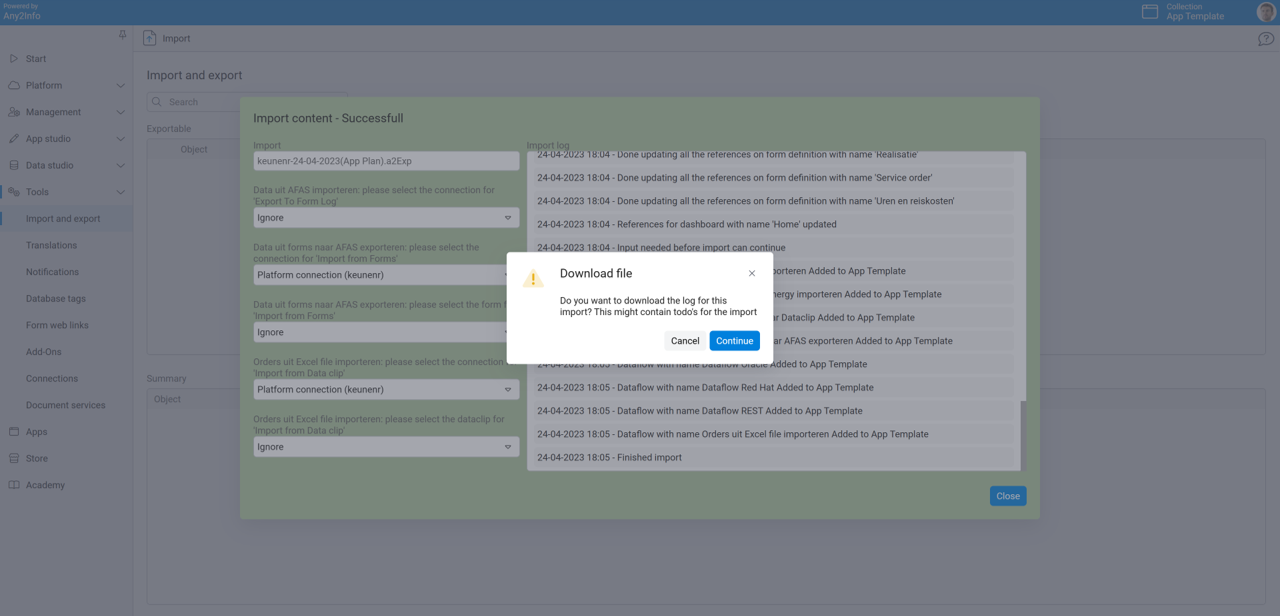
Section titled “Step 6: Complete the import”If all requirements are completed and the import is successful, the screen turns green. Close the import screen.
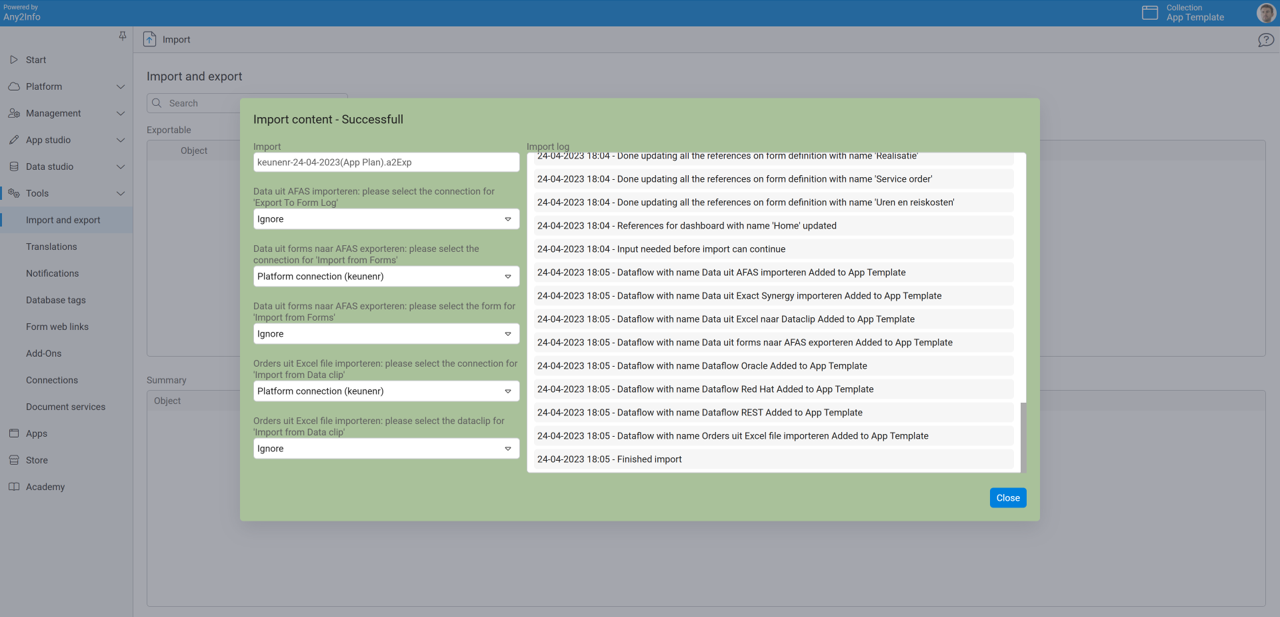
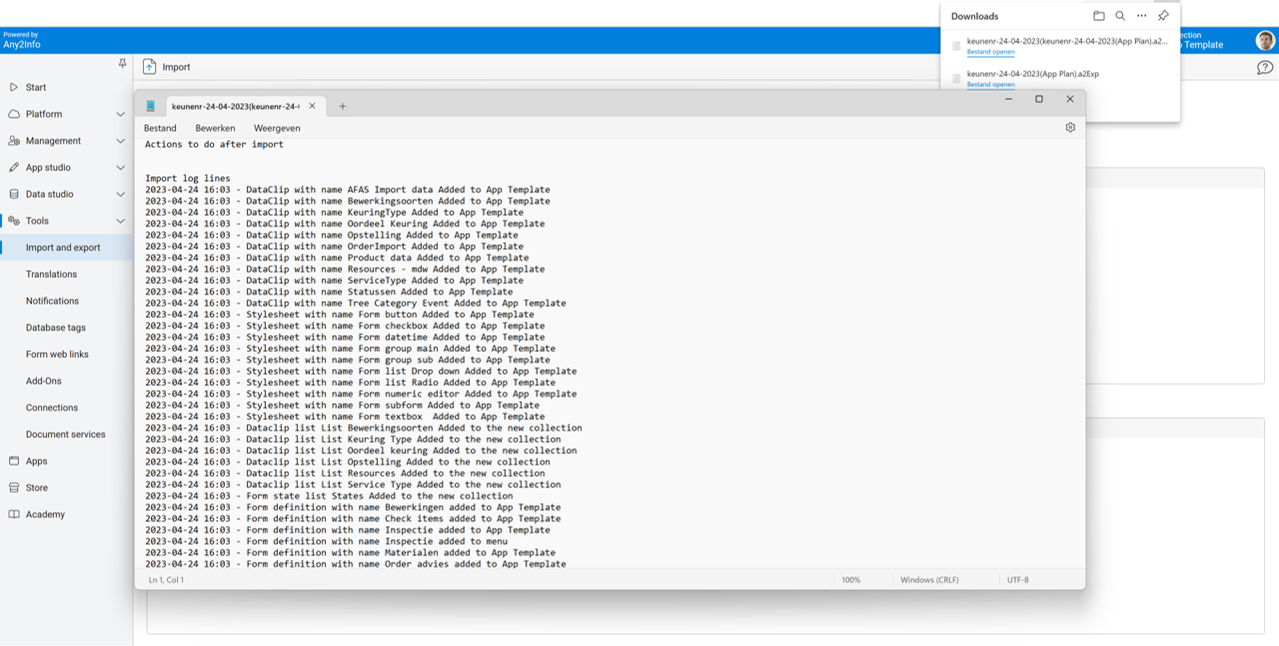
Download and view the log file of the import. The file might contain to-do’s for the import.
Step 7: Your app is ready
Section titled “Step 7: Your app is ready”Open the web app or native app to view the result.
Or advance building your app: open the menu path to adjust relevant settings or add new dashboards, forms, dataclips, or data flows.